The Simple LDtk Parser for GameMaker
A downloadable tool
LDTK NATIVE GML LOADER
A easy-to-use GML parser that brings your LDtk worlds into GameMaker.
I created this with help of AI. I struggled to use any Parser on GitHub, but this is really simple to use. Just make sure your Asset Naming is as described. Use it or modify it as you want, or even send me a updated version to upload.
1. LDTK PROJECT SETTINGS
To ensure the parser works correctly, please adjust these settings in your LDtk project (Project Settings):
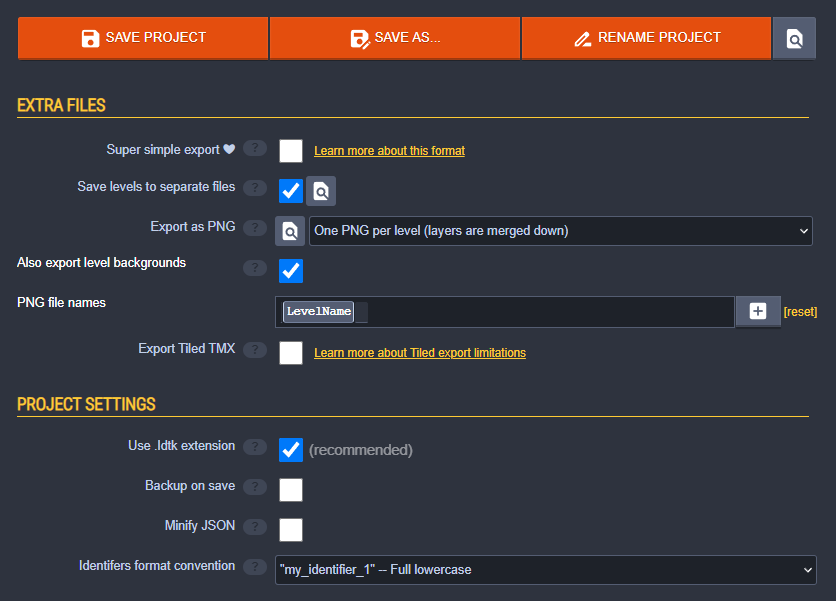
- Save levels to separate files: ENABLED
- Identifiers format convention: Set to "lowercase" (Highly recommended for Android compatibility).
- Export as PNG: This image can be used in the gml room editor.
2. IMPORTING FILES TO GAMEMAKER
- Export your project from LDtk.
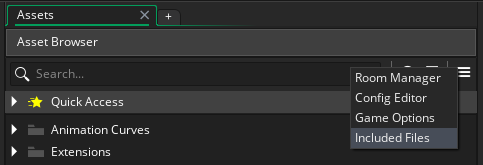
- In GameMaker, look at the right side of your Asset Browser for "Included Files".
- Drag and drop your exported .ldtk or .ldtkl files into this area.
3. ASSET NAMING CONVENTION
The parser automatically links your LDtk tilesets to your GameMaker assets using their filenames.
- If your tileset image in LDtk is named "world_tiles":
- Name your Tileset in GM: ts_world_tiles
- Name your Sprite in GM: spr_world_tiles
- Note: Use lowercase for everything to ensure 100% compatibility with Android devices!
4. SETUP IN GAMEMAKER
- Import the provided code as a script named scr_ldtk_loader.
- Import the provided object named obj_ldtk_decal. (This is the helper object for 1px Grid Layers).
5. HOW TO LOAD A LEVEL
You can call the loader from a controller object's Create Event or directly in the Room Creation Code:
var _path = "Level_0.ldtkl";
// IMPORTANT: This path is relative to your GameMaker "Included Files" folder. It's not the Path on your PC
load_ldtk_level(_path);
6. KEY FEATURES
- Auto-Stacking: Automatically handles multiple tiles stacked on the same grid cell by creating dynamic sub-layers.
- 1px Grid / Decal Support: If you use a 1px grid in LDtk for free placement, the parser automatically generates efficient decal objects.
- Multi-Tileset Support: Use as many different tilesets as you want in a single level.
- Coordinate Fix: Uses source-pixel mapping. Your level will look exactly like it does in the editor, regardless of tileset sorting in GameMaker
7. DEPTH & POSITIONING
When you load a level, check the GameMaker Output Console. The parser will print the depth of every layer like this:
LDTK LAYER: [Walls] assigned to DEPTH: -300
- Smaller / More Negative numbers are closer to the player (Front).
- Larger / Less Negative numbers are in the background (Back).
- Example: If your "Ground" is at -100 and your "Trees" are at -300, place your Player object at -200 so it walks behind trees but on top of the ground.
8. USE LEVEL PNG AS BACKGROUND IN GML
I suggest to put the Level.png from LDtk on a Background Layer in gml room editor, that way you can see the level without running the game. This makes it easy to put extra stuff in the room.
Name that Layer "editor_only" 
Then add this Code to your controller object "Room Start Event" or the "Room Creation Code".
var _layer_id = layer_get_id("editor_only");
if (layer_exists(_layer_id)) { layer_destroy(_layer_id) };
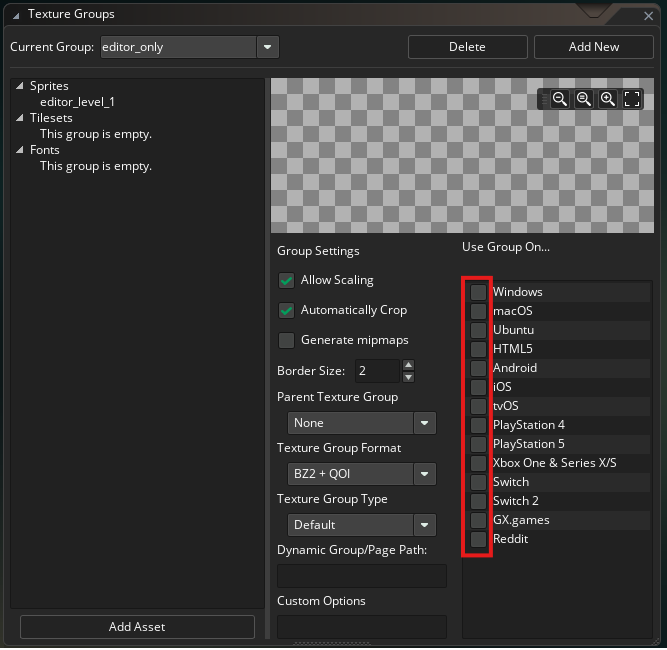
Also set up a separate "Texture Group" for these images and uncheck all platforms, so they don't exported.
Download
Click download now to get access to the following files:
Leave a comment
Log in with itch.io to leave a comment.